No and I have just re-checked your logs again for any clues and noticed that there seem to be constant errors - did you follow my suggestion regarding the Netlogon service?
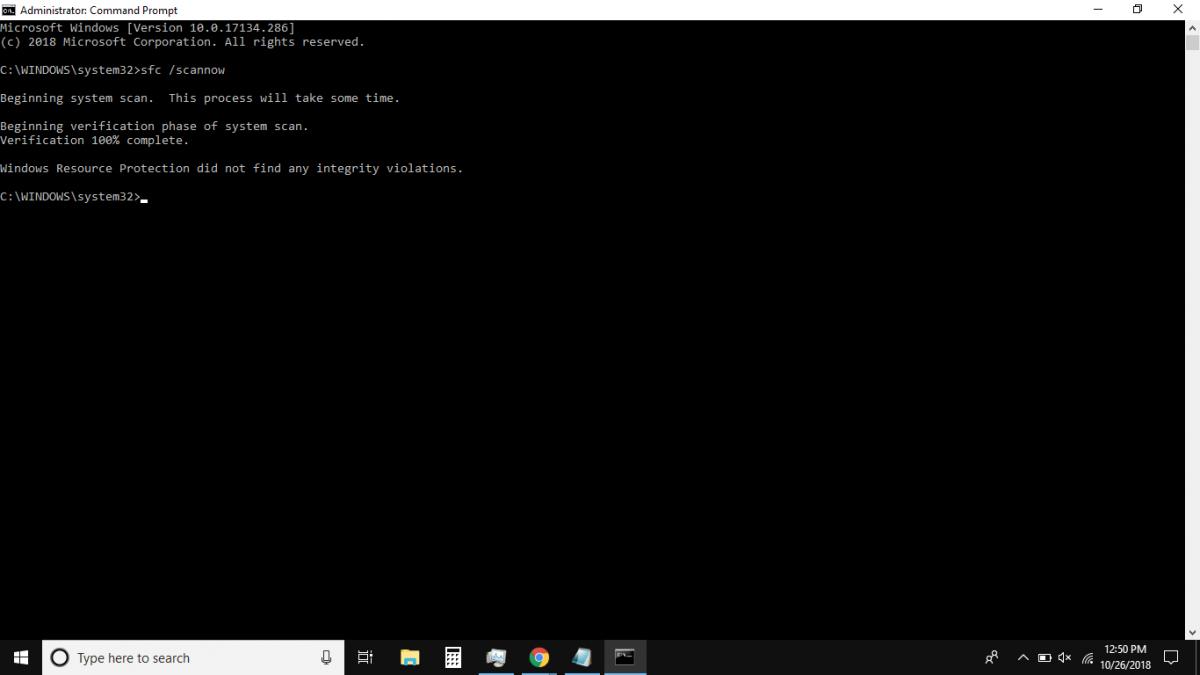
I think it would also be wise to check your system for any corrupt files. Go here and follow the instruction to check your system files.
I tried copying/pasting but it did the same. However, when I used IE instead of Firefox it worked. I should right-click on the link, choose 'copy link location' and paste it into the address bar in IE.
Use the System File Checker tool to repair missing or corrupted system files
That should bring up the MS link. If that doesn't take you there I'll send instructions myself, (would have done so earlier but am a bit busy at the moment and didn't want to keep you waiting).
We'll run one more scan to rule out malware and if that shows nothing I'll point you to the Windows forum to see if they can shed some light on it.
Run Emsisoft Emergency Kit
Please download Emsisoft Emergency Kit and save it to your desktop. Double click on the EmsisoftEmergencyKit file you downloaded to extract its contents and create a shortcut on the desktop. Leave all settings as they are and click the Extract button at the bottom. A folder named EEK will be created in the root of the drive (usually c:\).
after extraction, double-click on the new Start Emsisoft Emergency Kit icon on your desktop
the first time you launch it, Emsisoft Emergency Kit will recommend that you allow it to download updates: click Yes so that it downloads the latest database updates
when update the is complete, click Malware Scan. When asked if you want the scanner to scan for Potentially Unwanted Programs, click Yes. Emsisoft Emergency Kit will start scanning
when the scan has completed click Quarantine selected objects. Note, this option is only available if malicious objects were detected during the scan
when the threats have been quarantined, click the View report button in the lower-right corner and the scan log will open in Notepad
please save the Notepad log on your desktop and post the contents in your next reply
when you close Emsisoft Emergency Kit it will give you an option to sign up for a newsletter. This is optional, and is not necessary for the malware removal process.
This topic is from the What the Tech archive and can't take new replies. Geeks to Go is an active, free help community run by volunteers. Post your question there and a person, not a bot, will work through it with you.
Please don't run the tools or fix scripts from this topic on your computer. Malware fixes are written for one computer at one point in time and can do damage on another. Ask for help with your own computer instead.

 and I have just re-checked your logs again for any clues and noticed that there seem to be constant errors - did you follow my suggestion regarding the Netlogon service?