In any case … I typically have to reboot my router every couple of months.
I do the same. My isp gave me a new router because my pc slows down after 24 to 36 hours. They also ran a new line to my house, but none of it helped
I've been trying to figure this out since I built this pc. It has a dual core processor, a SATA hdd and 2G of RAM and it gets very sluggish very fast, graphics and performance. I've done Windows Repairs and formatted and installed Windows again several times but those procedures haven't helped. I know that the hardware was installed correctly because, when I saw that it became sluggish faster than my old PATA pc, I brought it to a PC repair shop and had them check it over. They said that everything was connected properly and they couldn't figure out why it slows down the way it does.
I performed some tests and posted the results in some screenshots above. It shows that my cpu is much slower than it should be. The copying time is also slow. Could it be that the cpu or graphics card is defective or not fast enough for videos? I don't do gaming. All of my drivers and BIOS are up-to-date.
Sluggish Video
108 min read
You apparently have a fine system.
Unfortunately I do not have personal experience running a 64bit capable machine with a 64bit version of XP.
There are reportedly more driver issues with 64biy XP, but you may have experienced long periods of correct functioning which would suggest that the drivers are functioning adequately.
There is a "bottle-neck" in every computer, no matter how big and powerful or small and basic.
Moving large files or folders from one external drive to another funnels a great deal of information through your motherboard.
Your CPU and RAM are probably adequate for all the tasks that you describe.
But running more than one large copy/paste operations simultaneously may be causing your system "bottle-neck" to become choked.
Renaming a file at the same time, also demands alot.
You've tentatively ruled out various maintenance and hardware issues, though we may need to revisit some of that testing.
I am wondering "what else" might be running in the background. By this, I do not mean malware, but rather ordinary utilities that you've installed to help your machine do what you wish it to do.
One way to get a quick overview of hardware, operating system, software, and background processes is to run the PCPitstop Full Tests (OverDrive). We'll then have a better picture of what is going on with your machine at the time of the testing.
I think you've done this previously.
If not please go here: http://www.pcpitstop.com/pcpitstop/default.asp
Register and allow the safe ActiveX test component to be installed to enable the Full Tests.
Post back here into this Thread with a link to your Results.
Best Regards,
Doug
Computer Name: DENISE
Date Tested: Mon Nov 3 17:35:47 EST 2008
This system performs extremely well on our benchmarks and appears to be among the fastest systems available! See the information below for your system details and advice on how to tweak the hardware and software for best performance.
In the tips and the tables, red indicates a serious problem, yellow a minor problem, and blue a suggestion.
Customized Tune-up Tips
• Upgrade disk space (Drive K, M, O, P)
• Check IE Restricted Sites zone
• Suboptimal Internet Performance
• Highly Fragmented Files
• Update outdated device drivers
• Adjust IE browser cache size
• Auto-filling Forms with IE May Present a Security Risk
• Install Backup Software
• Unusually low performance (Drive P)
My remarks:
Drives K and M are backup ext hdds so I'm not concerned about their capacity.
Drives O and P are near full to capacity. 4 of my ext hdds have broken within the past 6 months. I have a new 750G drive on order.
I have my IE Restricted Zones set on Medium
Highly fragmented files are only on drives that are near to capacity and can't be defragmented.
I updated all of my drivers to the most current when I formatted my pc last week. If there are updates that I don't have, I can't find them.
I don't know how to adjust IE browser cache size. If it's Temporary Files, they're deleted on a daily basis.
Drive P is one of my worst drives, with O following in its footpath. I'm not sure if they're almost ready to break but I have the files backed up to other ext hdds.
I turned on all of my ext hdds but it seems that the test won't test them all, so I've been turning some of them off.
http://www.pcpitstop.com/betapit/DoQueryFa…;conid=21207314
Please copy/paste the URL of your OverDrive Test Results into your next reply here.
It's safe. No personally identifying information will be shared.
Then the Techs here can have a better look at your machine's features.
As an example…. Here is the URL (from the IE Address Bar) for a machine that I am working on right now:
http://www.pcpitstop.com/betapit/sec.asp?conid=21207897
Best Regards
I have been following this thread about PCPitstop not scanning for you.
I wonder if Look in My PC would be suitable to retrieve the information needed for you to receive the advanced help you so desperately need.
I cannot recommend the software, I did have it once on my system, but it seems to have gone to God some time ago.
Worth a try as it is free unless you are advised by Senior Staff not to proceed with it.
Good luck and the best of regards,
for instance…
Right-click on C:\
Select - Properties
This will display a (C:) Properties panel
Across the top will be Tabs as follows - General - Tools - Hardware - Sharing - Quota
By default the Properties Panel will open the General(tab)
On the General tab will be information about how much of the Drive has been used and how much is still free
For example, here's the machine I am typing on right now
(C:) Properties - General
Used Space = 18.4GB
Free Space = 86.2GB
Capacity = 104
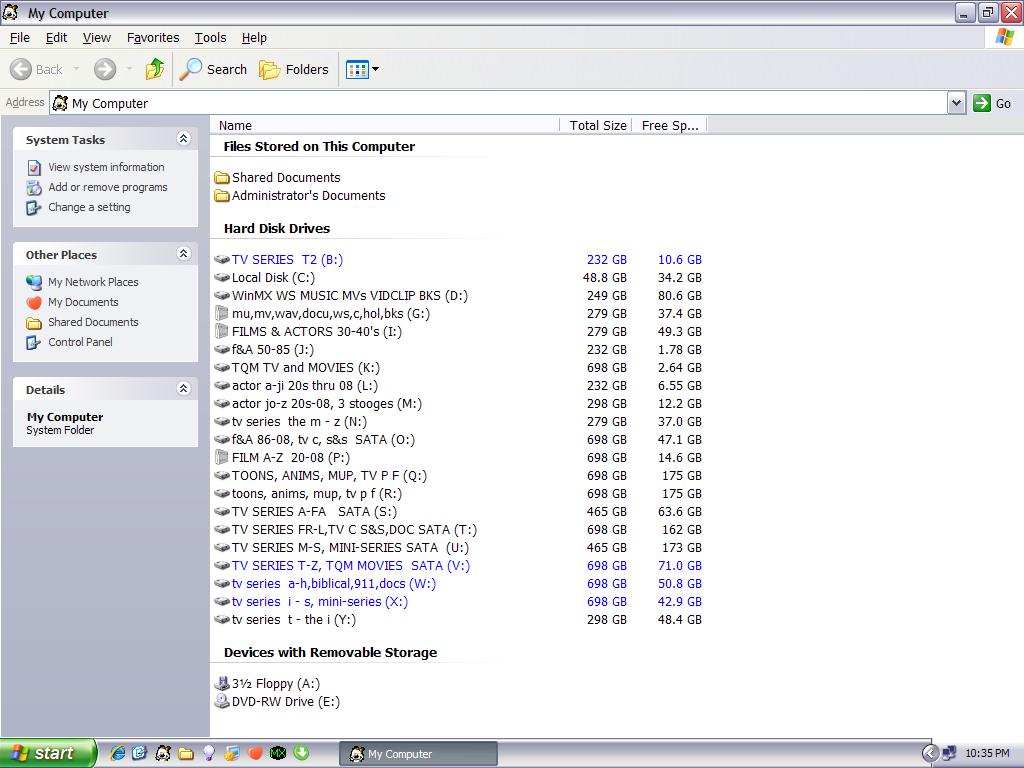
Please copy down the information for each of your Drives and provide the Used/Free/Capacity for each as displayed in example above.
Best Regards.
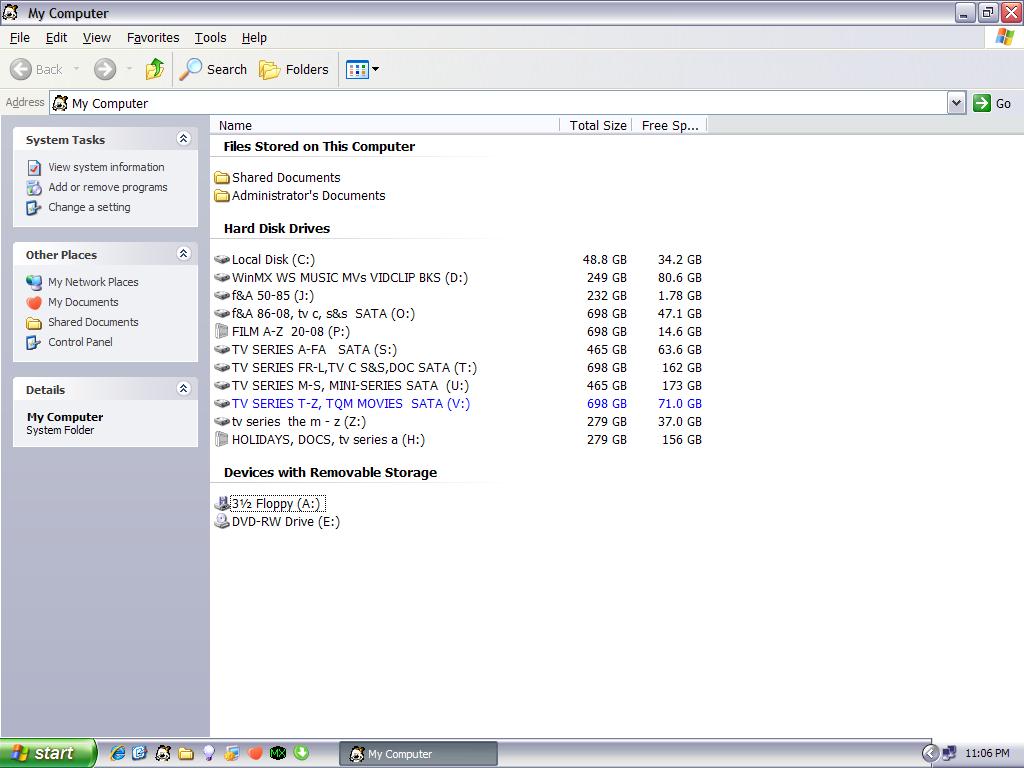
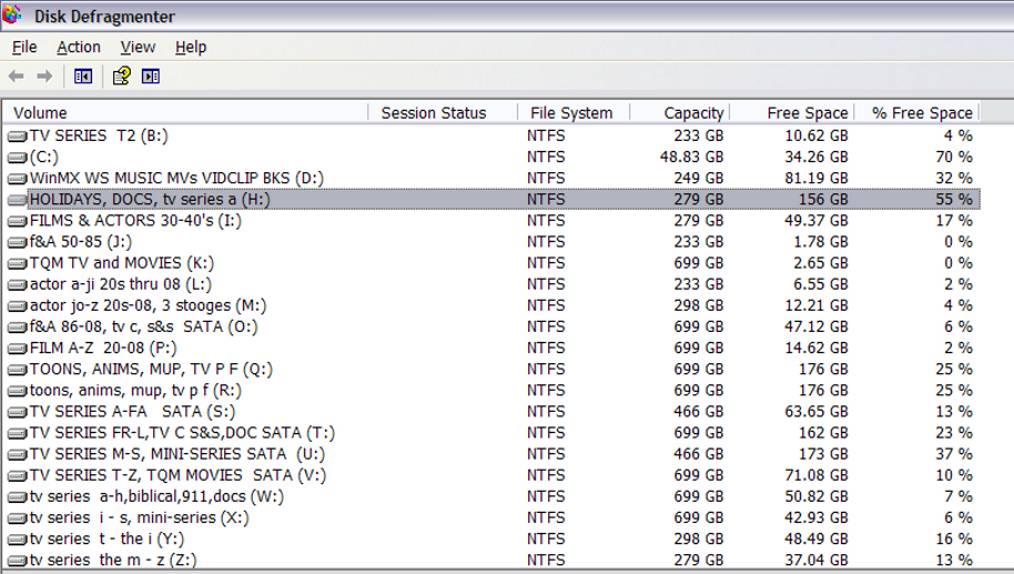
I applaud your sensible method of posting the entire list of information that I requested, doing it all in one screen-shot. Thanks.
"Some" of your problem with video playback is illustrated in the relative small amount of Free Space on various of your drives.
In the "old days" of Hard Drives under 100GB it was thought that disk performance began to degrade after reaching 50% capacity and became quite noticeable when dipping below 25% capacity Free Space.
With the size of Hard Drives you have, those old standards don't apply, but you can still fill a Hard Drive to full, particularly if you are running applications from the Hard Drive. Simply accessing media data from the Hard Drive requires much less Free Space, but you still need to have sufficient Free Space to accommodate occasional Defragmenting.
You are correct to recognize that being so full inhibits de-fragmenting utility.
It's also true that during use, your machine reads, and then writes back various pieces of the media, and not necessarily in the same location from which it was originally read, thereby increasing disk defragmentation.
The process of displaying various utilities and videos requires information to be read from the hard drive. If the HD is terribly fragmented, that requires the hard drive to be involved in a long interval of "seeking" the next file fragment, and then on and on with perhaps the "seek" portion of seek-read-write taking up more time than the actual read-write. Your experience of "choppy" and "slow" could be influenced significantly by the amount of fragmentation of each drive.
Interestingly, your practice of copy/pasting files between the various externals may serve to "decrease" fragmentation.
If for instance you had a completely empty external HD, and you copy/pasted files from an existing HD, each file would be sought out and read from the old fragmented HD as one continuous file, and laid down (written) in one continuous location. Each successive file would have the same experience of being read as a continuous sequence and placed contiguously on the fresh HD no matter how fragmented it source was, resulting in a near completely defragmented storage drive. That would be a good thing.
Please tell me, in the first illustration attached to Post #1
http://forums.whatthetech.com/index.php?s=…st&p=497006
Are all the programs sourced from the same drive, or might they be saved (located) on more than one drive.
The screens are:
Programs
HD Tune 2.54
Drive Speed Checker
If, for instance, HD Tune 2.54 is being called from Drive X:\ and Drive Speed check is being called from Drive Y:\
Then your Graphic Adapter may be experiencing a "bottle-neck" as each of those two programs attempt to provision their graphic display
The result would appear as you captured it in the screen-shot, but not necessarily as a fault of your Graphics Card, but rather as a result of two or more streams of information using the same conduits and caches to arrive to the Graphics Card and then being forwarded to the Display Monitor as partially formed images. Gamers call that "lag" and it even can happen from a single source of for instance online gaming when the image is complex and rapidly changing. The "lag" could also be worse if you were "running" the application program from same drive from which you were calling the image file.
_____________________-
For your external HD's you state that you connect various USB Hubs. I presume that these are "powered" hubs with external power supply.
You mention that you have most trouble when conducting copy/paste from more than one external drive to separate locations.
USB can be a real "stickler" when it comes to rate of transmission.
You will do better if all of your USB devices are of the same transmission type.
from: http://www.everythingusb.com/usb_hubs.html
Installing a USB hub is simply a job of connecting the hub itself, AC adapter and USB cable, but if you already have a mix of Hi-Speed USB and classic USB devices, getting them to coexist could be a challenge. The reason is that two isochronous devices (real-time video & audio) can already saturate the classic speed bus. If you need a couple of different classic USB devices to operate simultaneously, multi-transaction translator USB hubs are crucial as they allocate dedicated 12Mbps bandwidth
It "may" be useful for you to tell us more about your various USB hubs and the USB or fire-wire extensions that are connected to them.
some combinations may work better than others and that may relate to the problem you are experiencing.
________________________
I noticed your work at another site, where you were looking for Drivers for your VGA MSI NX8400GS-TD256EH 8400GS RT Video Card.
http://www.microsoft.com/communities/newsg…p;sloc=&p=1
In that thread, you mentioned that if you cannot find a particular driver, you would intend to simply ignore and not install it.
That may be OK if you have a previous version installed and the fresh driver is simply a difficult to locate updated driver.
But you will, I think need a driver for every device you have connected to your machine, whether supplied by MS XP 64 edition installation disk or from the Device manufacturer. Be sure to use drivers that are consistent with XP 64bit version.
Have you had a look at your Device Manager?
Are there any Yellow or Red warning signs?
The above "explanations and descriptions" are not intended to be precisely and technically specific. Instead, I am trying to communicate in common terms for better understanding. Not only that, but this situation has me at the limit of my own technical understanding. I apologize to you and other readers, if my presentation is less technically exact than what you were looking for.
Please keep us posted with your progress.
Best Regards
Thanks for all the thought and time that you put into this.
I found what I needed in terms of drivers. VIA PSI to PCI Bridge Controller is listed in Device Manager. When I updated another driver, it removed the yellow question mark on it. At the ASUS site, it's very difficult to find what's needed. It seems that they cater to Vista x64 and 2003 Server. I found ASPI for x64 . . . SCSI Pass Thrugh Direct - SPTD v1.56 (64 bit) [1.0 MB]. It does the trick,
The ext hdds that have very little room are my backup drives. They're usually turned off except when I have a number of files that I want to move to them. As I said somewhere in this thread, I lost 4 ext hdds within the past 6 months so I had to squash things in. I bought a 750 ext hdd about a month ago and it stopped working about 2 weeks after I started using it and the seller is giving me a hard time about replacing it. I have another one on order and it should be arriving within a few days, but I'll still need another 750G drive to give other ext hdds some room. I want to eventually replace the smaller USB drives with 750G SATA drives.
When I decide to get my drives in order, I first run a few cleaning programs, then Power Defragmenter GUI, followed by Windows Defragmenter. The ones that are just about full won't defrag anymore than they already are.
All of my HUBs have power supplies.
All of my programs are on my C drive. The folder "Programs" contain shortcuts to programs that I use often. That folder had been open. The other folder, Drive Speed Checker was also opened. When I clicked on the shortcut to HD Tune that's located in the "Programs" folder, HD Tune overlayed the Drive Speed Checker folder that was open.Are all the programs sourced from the same drive, or might they be saved (located) on more than one drive.
The screens are:
Programs
HD Tune 2.54
Drive Speed Checker
I don't know if my USB 2.0 ext hdds are a combination of a mix of Hi-Speed USB and classic USB. I didn't know that those two types existed. They all have a 16M buffer. Is there a way to tell which ones are Hi-Speed and which ones are classic USB? Some of them are up to two years old.You will do better if all of your USB devices are of the same transmission type.
I purchased my HUBs over several years so it would be very hard to tell you what they are. I recently purchased:
http://cgi.ebay.com/ws/eBayISAPI.dll?ViewI…em=300262378979
I also have http://www.sataport.com/
I just recently purchased an ADs Dual Use HUB that has 4 USB 2.0 ports and 4 Firewire ports. I have 1 or 2 more USB 2.0 HUBs that are in a tangled mess of wires and cables behind my computer desk and it would be very difficult to move them around to find the HUBs.
Again, thanks for finding out all the information you gave me. I've been trying to resolve the problems with my computer for a long time. I'll try PC Pitstop again. If it works, I'll post the info here.
Ask AI
AI can make mistakes. Check the cited posts. Archived advice can be out-of-date
Don't include personal information. Questions and selected public posts go to OpenAI. About Ask AI