DSenette
GAHHHHH!!!
hehe YES you are doing something wrong…you're not listening to me
http://www.dlink.com/products/?pid=322 <–that's the print server right?
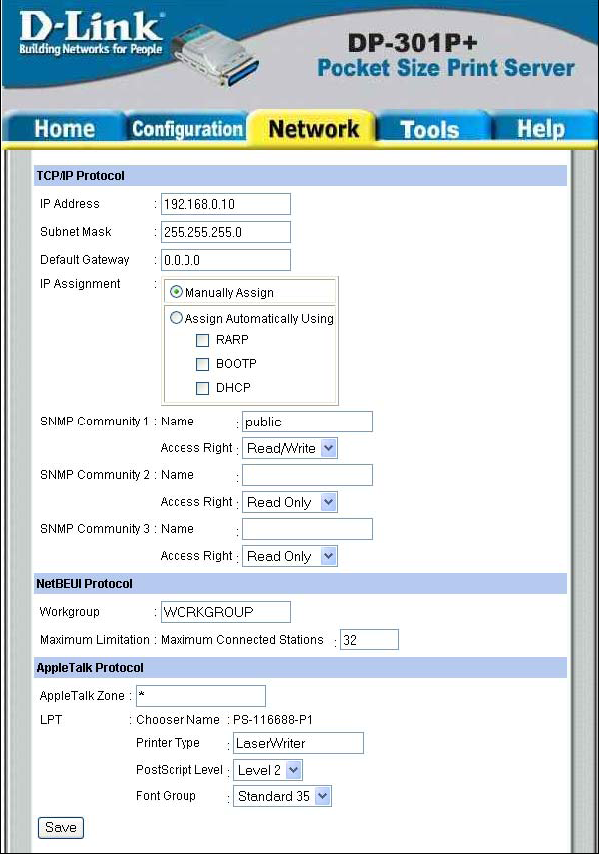
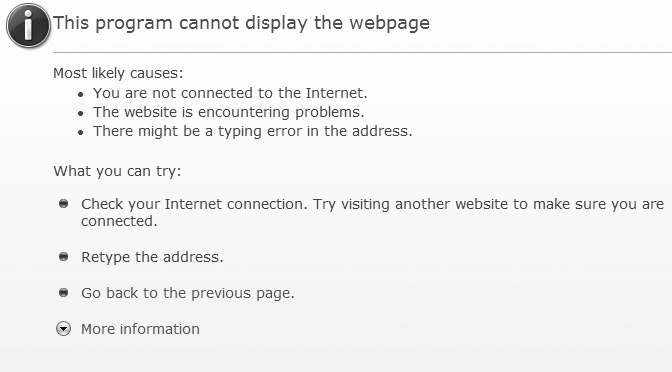
connect to the printers web interface (by putting the http://192.168.0.10 into your web browser)
dp301P__manual_101204.bmp
in the FIRST BOX (where it says 192.168.0.10) put in 192.168.1.2
then press the save button…this will PROBABLY disconnect you from the configuration page…that's ok
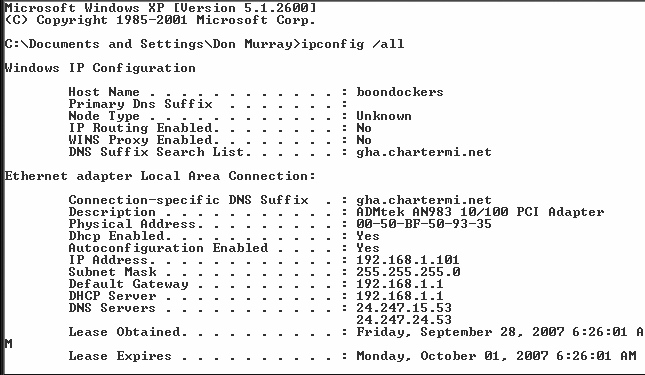
go back and set y our computer to "obtain ip address automatically"
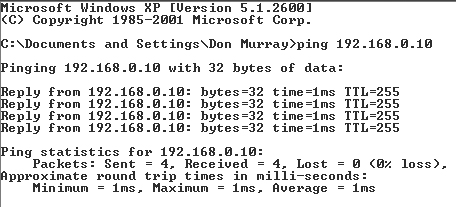
press the start button, then the run button…in that box type "cmd" (without the quotes)….when the command window opens up type "ipconfig /all" (without the quotes) your ip address should now be 192.168.1.X (where X is a number) if it is….type "ping 192.168.1.2" (without the quotes) you should get replies from the printer (not timeouts) NOW try to do this part of what y ou tried before…but notice the differences (in bold)
5. Opened Printers and Faxes and double clicked Add Printer. Then Next.
6. Using Add Printer Wizard I selected "Local Printer" and unchecked "Automatically detect and install my Plug and
Play printer." Then Next.
7. Checked Create a new port and pulled down selected "Standard TCP/IP Port". Then Next.
8. Then Next again to open Add Standart TCP/IP Printer Port Wizard. I entered 192.168.1.2 (the address of the print server) and Next.
9. Selected "Custom" and clicked Settings.
10. Selected LPR and qntered Queue Name from step 4 above.. Then OK. and NEXT and Finish.
11. Selected Printer and Next
12 Entered a name "Office Printer". and NExt
13. Selected Yes to print a test page and Next.
NOW you should be able to print and connect to the internet

 That did it!
I must thank you for your patience and determination to see this thing through.
I do not know what the problem was getting to this last step and making it work other than my confusion. Like you kept saying, "You are not listening." My wife says that frequently.
Just to let you know I am 72 years old and love a challenge. Keeps my mind working.
Again, thanks for sticking with my problem.
Don