I'm at work right now, and I certainly need to look at the OTL log in more depth when I get home, but I'm not seeing the odd entries you had last time.
So from your description, it sounds like you are connecting via the Qwest wi-fi and your husband (who has not had issues) has been using the Belkin router. Is it possible for you to connect via the Belkin router for me just briefly and tell me if you still experience the redirects?
It is possible for a router to become infected and it is possible the Qwest unit is the root of the problems. If your system was behaving perfectly while you were away and then began to misbehave upon coming home again, that would *possibly* explain it. That does not mean that is 100% the problem, but it means that we need to at least consider it and take a closer look at the possibility, while we also take a look at the logs and make sure the machine is not reinfected as well.
I didn't see anything specific in the logs, but that does not mean there is not malware on the machine again, it only means there wasn't something seen in a place where OTL routinely scans and looks.
Please let me know what happens when you connect to the Belkin router - do the symptoms persist or do they clear up when you do that?
From there we can plan an appropriate course of action.
Doris,
I am connected as my husband is now. The Qwest modem/ router is connected to the belkin unit, which is how we are able to use the wifi. The Qwest unit used to have wifi but no longer does. In order to use the Qwest to get to the internet you must either hook direct with a cable or experience on and off service so I hooked my belkin( brought from home) to their unit and now we have internet via wifi as well as netflix on the tv. So he is not using something different from me. I only mentioned that he has no problem because we have never hooked his machine by cable to the qwest router. I am the only one with an infected computer.
It was working perfectly too…I can't understand how it got back on? Tell me what you think when you have time and we will go from there. So sorry that it isn't fixed but it was really close so I'm sure we can get it again. Thanks so much for sticking with me:) I'll wait to hear from you.
Sue
OK now I understand. I thought he was using a different router than you. That eliminates one troubleshooting issue, but that means indeed it is your machine we need to look at.
I know doing more logs is frustrating, but since there was nothing obvious in the OTL log, I'd like to see if anything turns up in these before we start using tools. In fact, when we did Combofix last time, it was actually the information from the OTL log that helped us create the script we used, not just running Combofix. So just running tools may not solve the problem on their. It's important that we try and find the root of the problem if we can to give us the best chance of clearing this up once and for all.
Can you also tell me which browser is your preferred one to use? Knowing that may give me some direction where to look for something that may be trying to "hide" from us, or where I may need to look for a tool that may allow us to do some extra scanning.
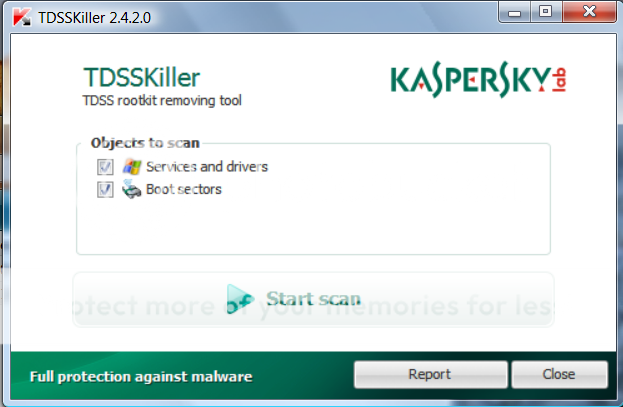
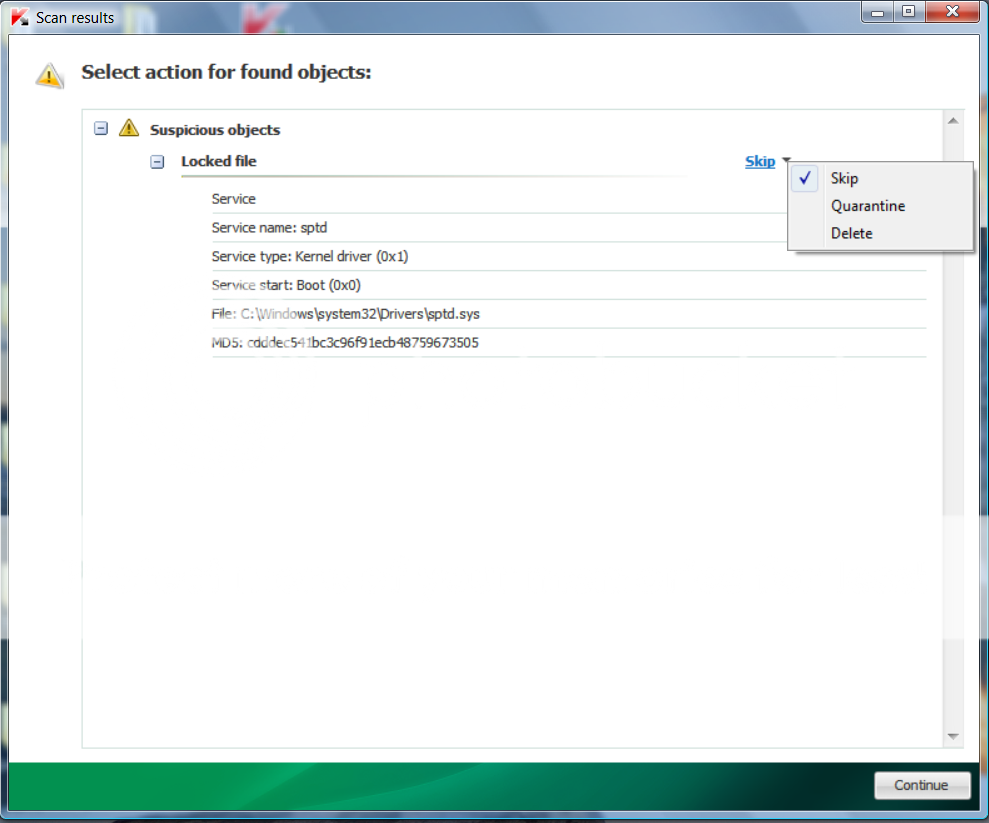
Please read carefully and follow these steps. There is a difference between what you see in one of the images below and what I need you to do.
We are only creating a log - I do NOT want you to "cure" or try to fix anything in this step. It is very important that you don't choose Cure when presented with that option.
If no reboot is require, click on Report. A log file should appear. Please copy and paste the contents of that file here.
If a reboot is required, the report can also be found in your root directory, (usually C:\ folder) in the form of "TDSSKiller.[Version]_[Date]_[Time]_log.txt". Please copy and paste the contents of that file here.
Downloaded tdsskiller, extracted the file to desktop but it will not run when I click on it. I turned off my mcafee…but that didn't help either.
Not sure why it doesn't start up…will wait for your direction.
Sue
Try right clicking and choosing "run as administrator" and let me know if that works. I'll sit tight here for a few minutes until I know if it runs for you or not.
I'd like you to try running TDSSKiller in Safe mode by doing the following:
Boot your computer in Safe Mode
Turn the computer on or Restart the computer
As soon as BIOS is loaded, start tapping the F8 key.
The Windows Advanced Options Menu appears. If you begin tapping the F8 key too soon, some computers display a "keyboard error" message. To resolve this, restart the computer and try again.
Use the arrow keys to select the Safe Mode menu option.
Press Enter.
The computer then begins to start in Safe mode.
Log into your usual account
When you are finished with all troubleshooting, close all programs and restart the computer as you normally would.
Please read carefully and follow these steps. There is a difference between what you see in one of the images below and what I need you to do.
We are only creating a log - I do NOT want you to "cure" or try to fix anything in this step. It is very important that you don't choose Cure when presented with that option.
Open the TDSSKiller folder and doubleclick on TDSSKiller.exe to run the application, then on Start Scan.
If no reboot is require, click on Report. A log file should appear. Please copy and paste the contents of that file here.
If a reboot is required, the report can also be found in your root directory, (usually C:\ folder) in the form of "TDSSKiller.[Version]_[Date]_[Time]_log.txt". Please copy and paste the contents of that file here.
Doris,
I did as you said and booted into safe mode and my computer has been stuck there ever since. It says that something is damaged and keeps trying to fix it but says in the end that it cannot be fixed. It flashes a blue screen then tries to fix it but doesn't work. I am posting from my husbands computer because mine will not boot at all now. It tried to restore from an earlier point but cannot. I tried to do the dds prior to this step which didn't work either. tell me what to do because I am lost.
Sue
After trying the startup fix again it finally gave me an option on restoring to an earlier point so I am trying that now…will let you know if I can boot after that.
Nope…it didn't fix it. The computer tries to start but something is wrong and it goes to a blue screen in a flash then goes to the screen that asks you to choose to fix it.
I am sure it is the dds thing I did. It kept taking me to the website to download and had a big red box on it and said whoa…told me it wasn't safe. I had mcaffee off at the time because I was have trouble with the programs you said to download. Once I did see a black screen with directions that seemed like it was going to work but it didn't. It's late and you are probably gone until tomorrow so I am just gonna shut it down and check for a post tomorrow.
Just so that you know - DDS actually doesn't "do" anything. It's just a scanning tool. You can't even fix anything with it and whatever we find with it we have to go use another tool to fix. There is nothing that DDS could have done that would have caused a problem on the machine. In the directions for safe mode we had, you would have been booting without internet access, and by default, safe mode would not have had McAfee running anyway since it boots with only minimal files loaded anyway.
The screen you are seeing that asks you to fix it sounds like the Windows 7 Startup repair screen. If that's what it is this comes up when there is a corruption on the machine (which can be caused by malware or I've also seen it happen when there are Windows updates that have not applied correctly for whatever reason) that keeps the machine from starting properly. It is Windows way of trying to fix the problem automatically for you. Sometimes it works, and sometimes it does not. Either way, a startup repair can be a frustrating and scary thing for a user. It comes out of nowhere, and can take what feels like forever to run. And then it may or may not work.
Take a deep breath and boot the machine again. The blue screen isn't good, but just ignore it for the moment. Let's focus on the screen that's asking you to fix it. Is it indeed the Startup Repair Screen? If so, go ahead and let it try again, sometimes, even if says it can't finish the repair, if you just say ok it will boot normally anyway. You don't need to try and restore to an earlier point again since we know that won't work. And whatever you do, DO NOT let it take you to an unsafe website. If there doesn't appear to be any way to avoid that, just abort the attempt and let me know.
If that doesn't work, what happens if you try to start in safe mode again by tapping the F8 key as soon as you restart the machine? If you manage to get a menu this time choose Safe mode WITH NETWORKING and see if you can get the machine to boot that way. If you can, rather than run any scans, I'd just shut it down normally and then try to boot normally and see if that works. Sometimes if you can just get the machine back into a normal pattern you can get back to where you need to be.
If I'm wrong on the options on what the "fix" screen says, can you please give me a little more detail on what options it is giving you so I can better help you? I know this is frustrating but stick with me. It sounds like we may have something more going on that simple redirects. It could be hardware related, could be Windows related, or could be a nasty piece of malware - it's too early to tell, but we'll work it out - it may take some patience though.
Let me know if you have any luck with the above instructions.
✨ Ask AI
AI can make mistakes. Check the cited posts. Archived advice can be out-of-date
Don't include personal information. Questions and selected public posts go to OpenAI. About Ask AI