Doug
If the above didn't correct your situation, you'll need a fresh copy of the hal.dll from your XP CD
Here's How: (put the correct XP CD into your CD ROM unit)
When prompted (Press "any" key to boot from CD)
1. Enter Windows XP Recovery Console.
2. When you reach the command prompt (detailed above), type the following and then press Enter:
expand d:\i386\hal.dl_ c:\windows\system32\hal.dll <– notice the required space after the word "expand" and also between "_" and "c"
Using the expand command as shown above, d represents the drive letter assigned to the optical drive that your Windows XP CD is currently in. While this is most often d, your system could assign a different letter. Also, c:\windows represents the drive and folder that Windows XP is currently installed on. Again, this is most often the case but your system could be different.
3. If you're prompted to overwrite the file, press Y.
4. Remove the Windows XP CD, type exit and then press Enter to restart your PC.
Assuming that a missing or corrupt hal.dll file was your only issue, Windows XP should now start normally.
If Windows doesn't start for you from the above two suggestions, then we may need to post over into the Hardware Forum for additional assistance.
Ken will give you instructions about whether or not it is time to move over to Hardware Forum, or if there are additional instructions you are to follow here, first.
Best Regards
Here's How: (put the correct XP CD into your CD ROM unit)
When prompted (Press "any" key to boot from CD)
1. Enter Windows XP Recovery Console.
- Boot From the Windows XP CD
- Allow Windows XP to Begin the Setup Process
- Press R to Enter Recovery Console
- Choose the Windows Installation (you will probably only have one selection)
- Enter the Administrator Password (probably blank or nothing), so just press enter unless you know that your machine has a password for the Administrator
2. When you reach the command prompt (detailed above), type the following and then press Enter:
expand d:\i386\hal.dl_ c:\windows\system32\hal.dll <– notice the required space after the word "expand" and also between "_" and "c"
Using the expand command as shown above, d represents the drive letter assigned to the optical drive that your Windows XP CD is currently in. While this is most often d, your system could assign a different letter. Also, c:\windows represents the drive and folder that Windows XP is currently installed on. Again, this is most often the case but your system could be different.
3. If you're prompted to overwrite the file, press Y.
4. Remove the Windows XP CD, type exit and then press Enter to restart your PC.
Assuming that a missing or corrupt hal.dll file was your only issue, Windows XP should now start normally.
If Windows doesn't start for you from the above two suggestions, then we may need to post over into the Hardware Forum for additional assistance.
Ken will give you instructions about whether or not it is time to move over to Hardware Forum, or if there are additional instructions you are to follow here, first.
Best Regards


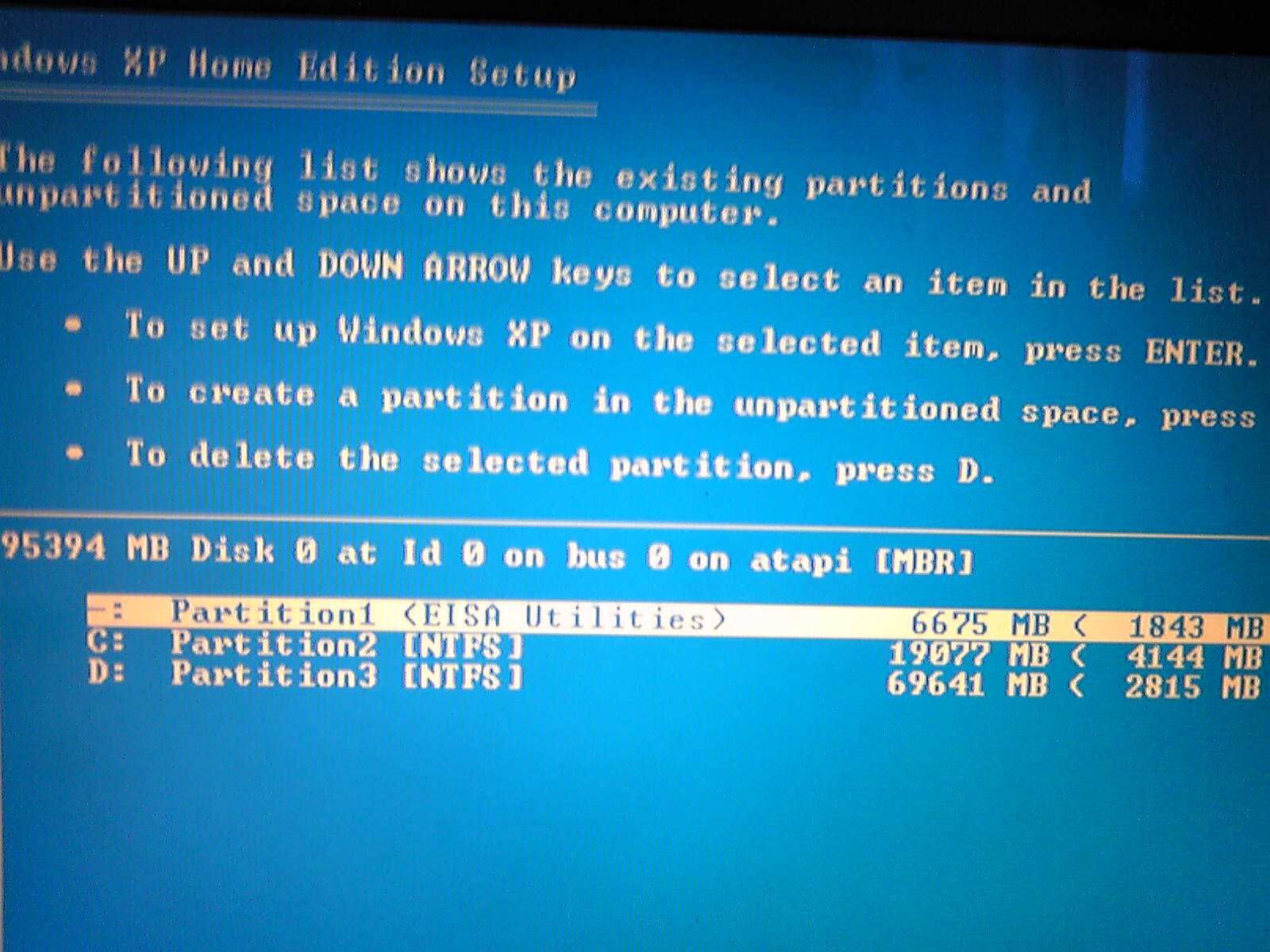
 My screen looks a bit different from yours..
I took a picture of the screen for you to see, it's the first thing that came up and I never had a chance to press neither Enter nor R.
Are you at all familiar with this?