If you're happy, I'm happy.

We can now proceed to do some clean up routine. Otherwise, let me know if there is any problems.
Clean up with
OTL:
- Double-click OTL.exe to start the program.
- Close all other programs apart from OTL as this step will require a reboot
- On the OTL main screen, press the CLEANUP button
- Say Yes to the prompt and then allow the program to reboot your computer.
===================================================
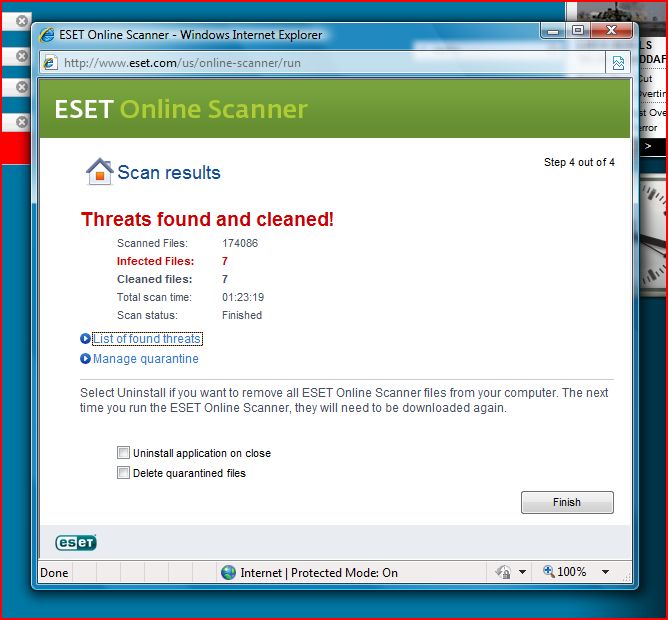
I'm pleased to let you know that your log is clean!

Thank you for your patience, and performing all of the procedures requested. I would also like to take this opportunity to apologize for any delay that may have occurred.
————————————————————————————————————–
MICROSOFT UPDATES
It is very important that you get all of the critical updates for your Operating System and Internet Explorer. Keeping your OS and browser up to date will help make you less susceptible to attacks by Trojans and viruses. Please go to
Microsoft and download all the critical updates to help prevent possible re-infection.
Passwords
It is good security practice to change your passwords to all your online accounts on a fairly regular basis, this is especially true after an infection. Refer to this Microsoft article
Strong passwords: How to create and use them and consider a
password keeper, to keep all your passwords safe.
Make Internet Explorer more secure
Click
Start > Run
Type
Inetcpl.cpl & click
OK
Click on the
Security tab
Click
Reset all zones to default level
Make sure the
Internet Zone is selected & Click
Custom level
In the ActiveX section, set the first two options ("Download signed and unsigned ActiveX controls) to "Prompt", and ("Initialize and Script ActiveX controls not marked as safe") to "Disable".
Next Click
OK, then
Apply button and then
OK to exit the Internet Properties page.
SPYWARE PREVENTION
This is a good time to set up protection against further attacks. In light of your recent problem, I'm sure you'd like to avoid any future infections. Please read these well written articles:
To help protect your computer in the future I recommend that you get the following free programs if you do not already have them:
- WOT, Web of Trust, warns you about risky websites that try to scam visitors, deliver malware or send spam. Protect your computer against online threats by using WOT as your front-line layer of protection when browsing or searching in unfamiliar territory. WOT's color-coded icons show you ratings for 21 million websites, helping you avoid the dangerous sites:
- Green to go
- Yellow for caution
- Red to stop
WOT has an add-on available for both Firefox and IE.
- SpywareBlaster prevents the installation of ActiveX-based malware, blocks cookies, and restricts the actions of "bad" sites. See tutorial here
- MVPS HOSTS FILE replaces your current HOSTS file with one that will restrict known ad sites from serving you unsolicited advertisements. It basically prevents your computer from connecting to those sites by redirecting the attempted connections to 127.0.0.1, which is the IP of your local computer. See guide here and for Windows Vista here
- Download Host.zip and Save it to your Desktop.
- Right-click hosts.zip and select 'Extract all files' or 'Extract files…'.
- Follow the prompts and click 'Finish'.
- This will open the newly created hosts folder on your Desktop.
- Double-click on the included mvps.bat file, this will rename the existing HOSTS file to HOSTS.MVP, then it will copy the included updated HOSTS file to the correct location on your machine.
- Once updated you should see another prompt that the task was completed.
Follow this list and keep your antivirus program and antispyware programs updated and scan with them on a regular basis. By doing so, your potential for being infected again will reduce dramatically.
Hopefully this should take care of your problems! Good luck.
Do you have any questions or problems to ask? Please do not hesitate to do so.
**Please respond this one more time to ensure it is resolved and close this topic.